

Workspace and a Skill.
For team-wide reuse inside an org, you can also save templates or skills to OpenWork Cloud and let teammates open them from the Cloud tab on the Skills page or from Settings -> Cloud.
Sharing your entire configuration
OpenWork also allows you to share your entire configuration with others. That includes skills, MCPs, agents, unique LLM providers you might’ve added, and more. Click on the... next to the workspace name, then Share ... , then Share a template
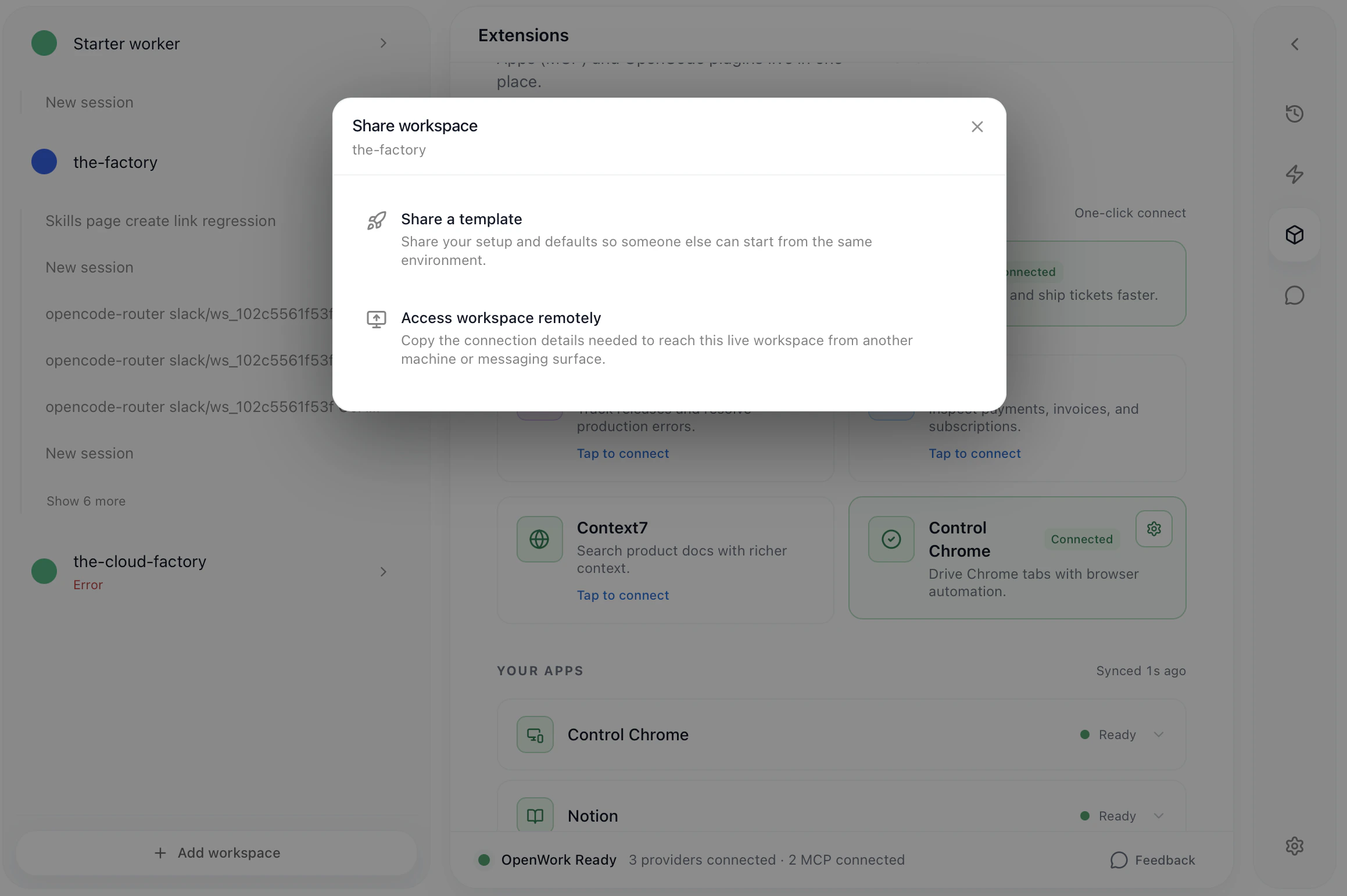
How to share a SKILL.md
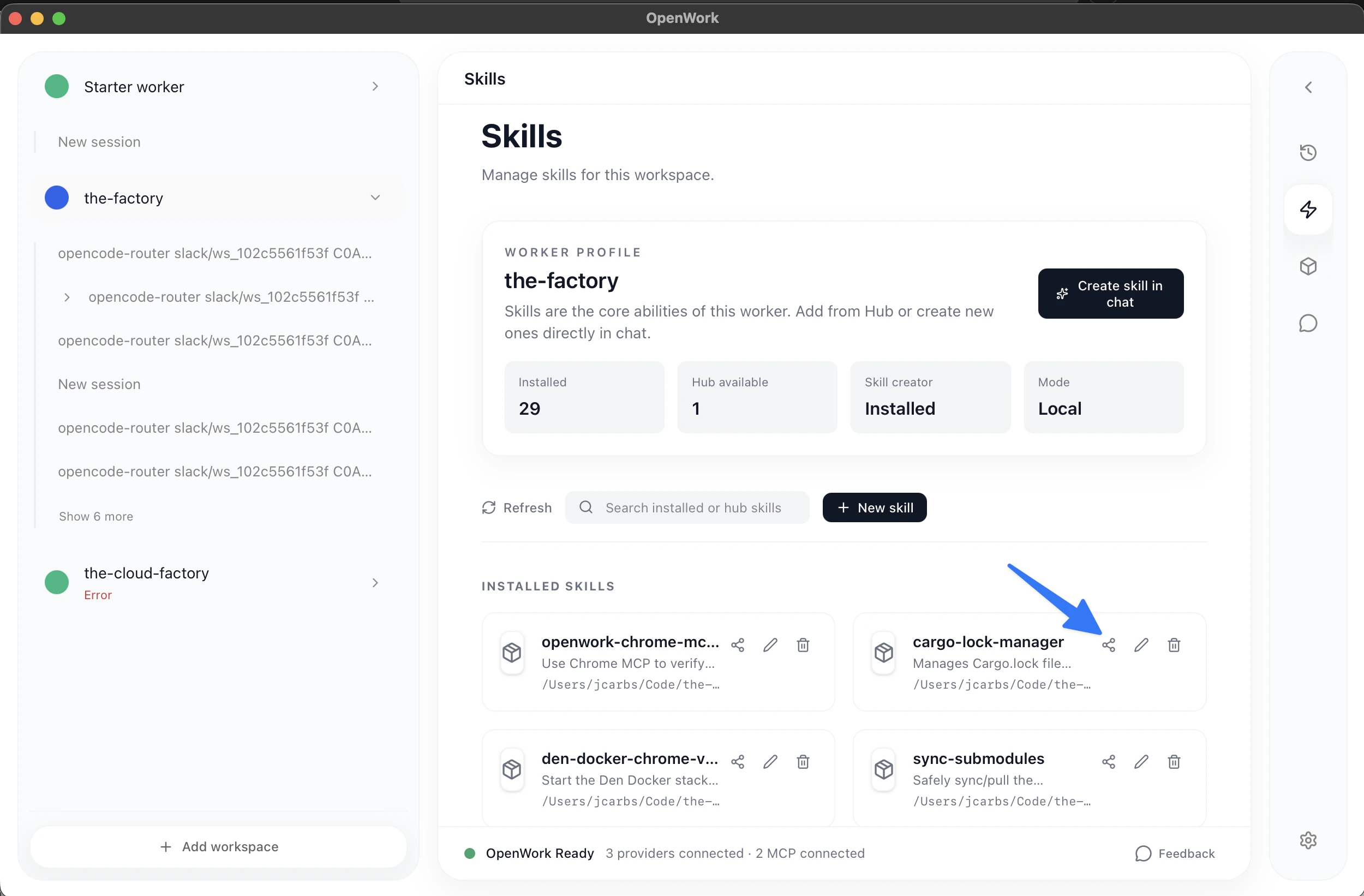
You can share aSKILL.md by clicking under Your_Workspace > Skills
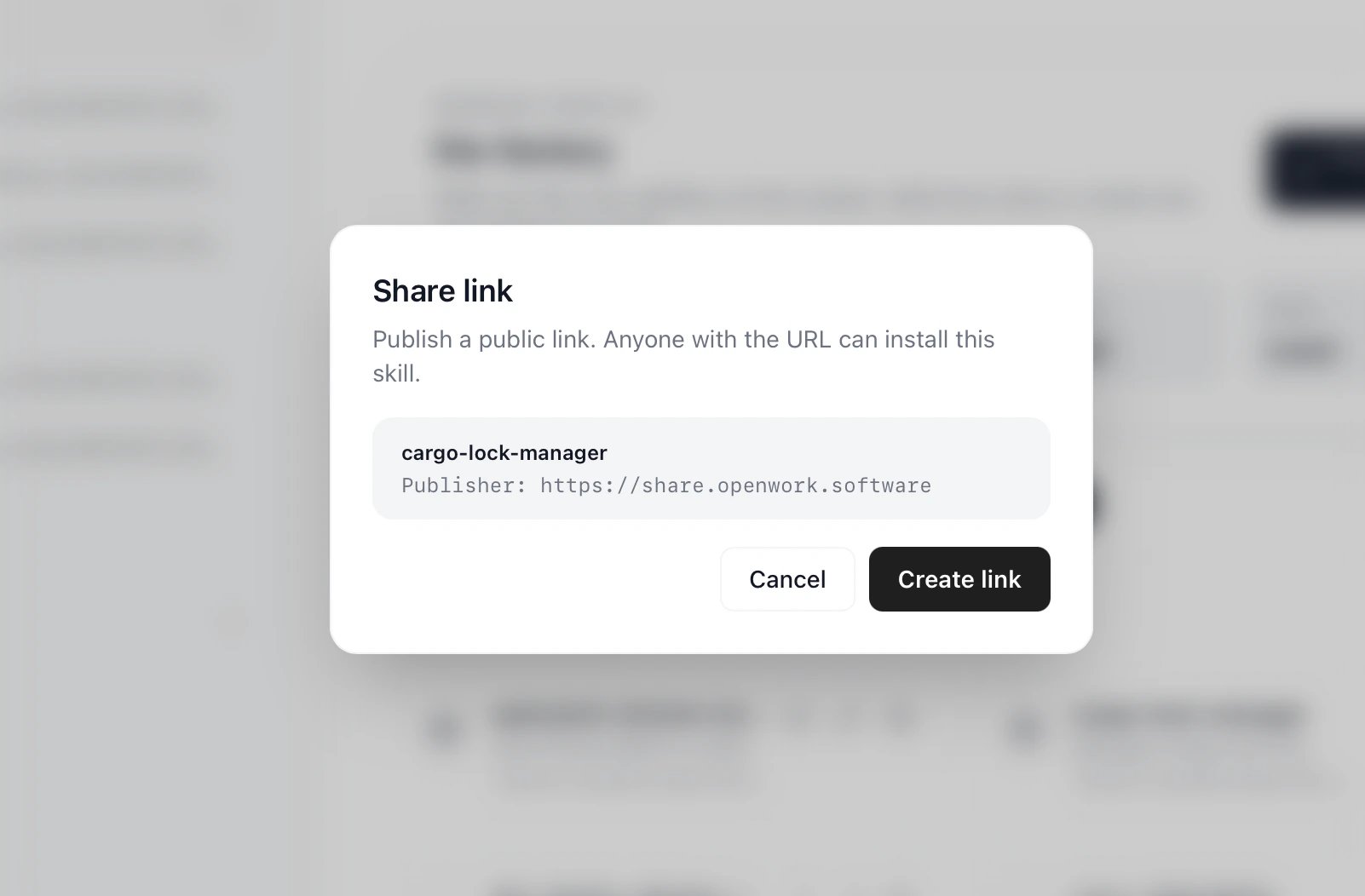
Create Link which will create a custom page for the skill at share.openworklabs.com/b/:skill_id
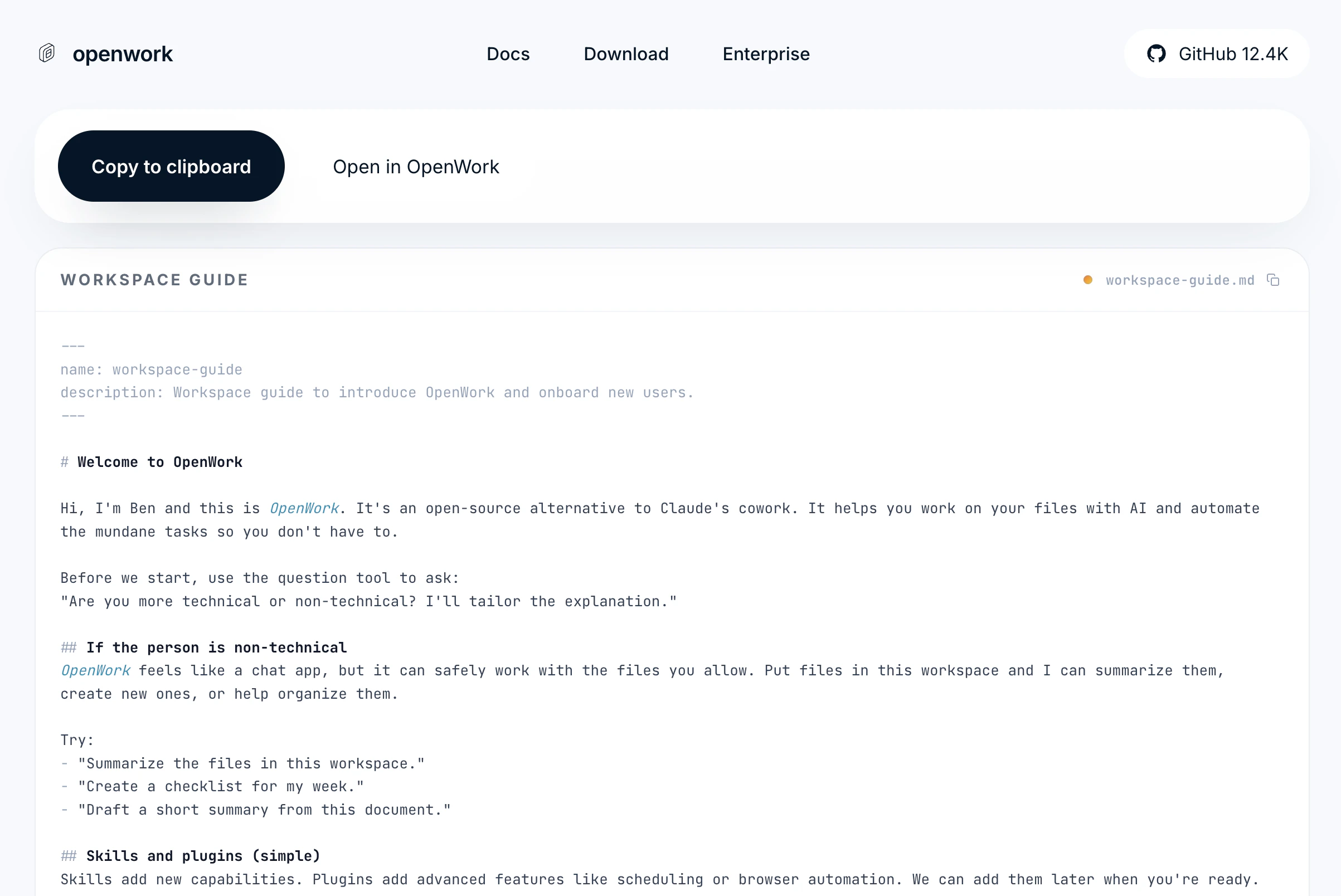
copy the skill or Open in Openwork
How to save a skill to your OpenWork Cloud organization
- Open
Workspace -> Skillsin the desktop app. - Pick the installed skill you want to share.
- Click
Share skill. - Choose the
Teamoption. - Sign in to OpenWork Cloud if needed.
- Pick the sharing permission:
Organization Only - Not in hubkeeps the skill available to the active org without adding it to a hub.Private for me onlyuploads it to the org but keeps it limited to your account.- If a hub is available, you can also attach the skill to that hub during the same flow.
- Click
Upload and save.
Skills -> Cloud. If the skill was attached to a hub, it also appears in Settings -> Cloud -> Skills with the hub label so people can sync or remove it later.