- Open an existing skill share link from
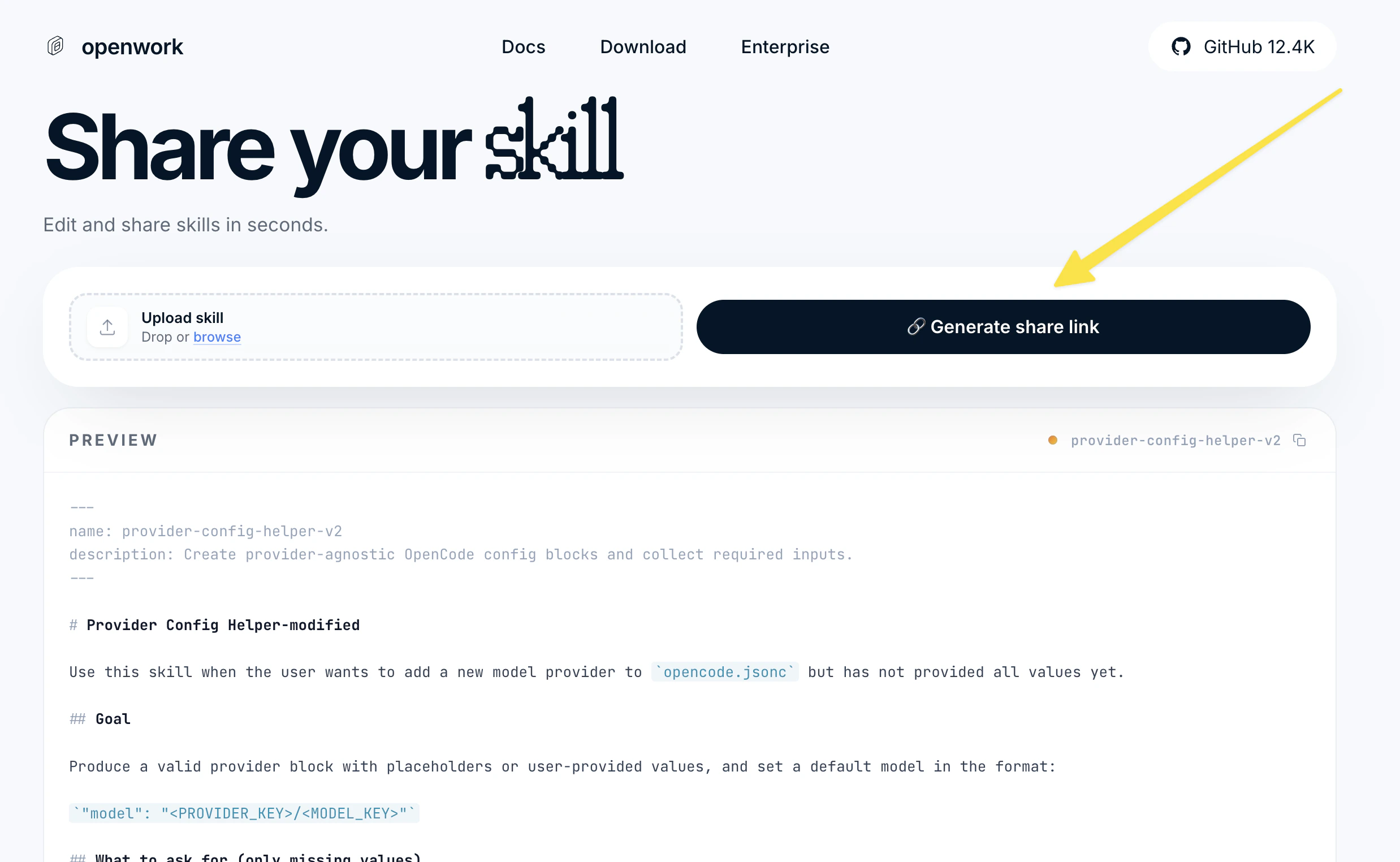
share.openworklabs.com - Paste a skill into the share site, then import it
- Create a skill with
Create skill in chatand paste the external skill into that flow - Install a shared skill from your OpenWork Cloud organization in
Skills -> CloudorSettings -> Cloud
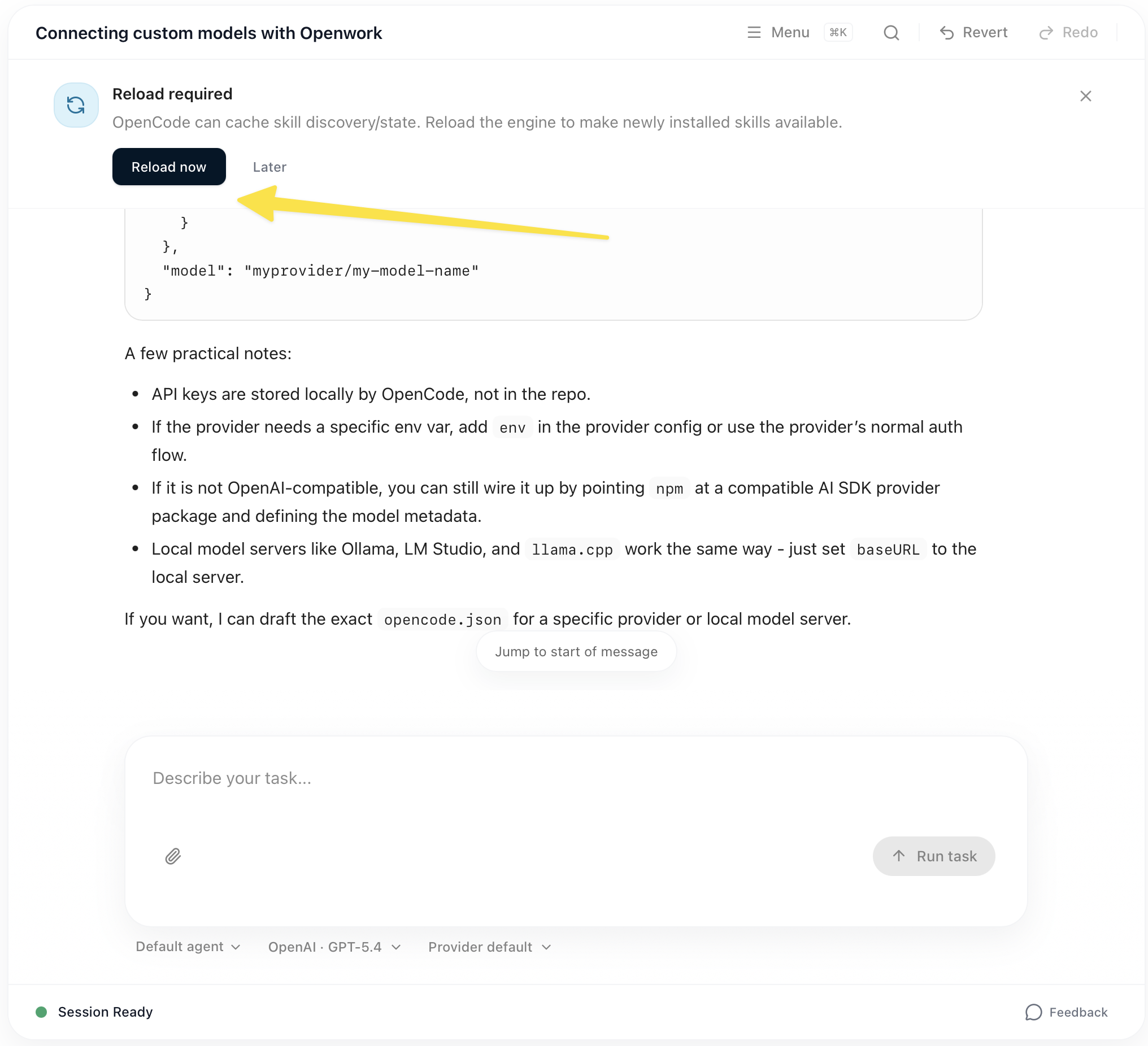
.opencode/skills/<skill-name>/SKILL.md inside your workspace.
We recommend (1) and (3) because they match the built-in OpenWork flows most closely.
For teams, OpenWork Cloud can publish shared skills either as standalone org skills or inside a skill hub. Each desktop workspace can install them from the Cloud tab on the Skills page or from Settings -> Cloud.
Installing a skill from OpenWork Cloud
If someone on your team saved a skill to your active OpenWork Cloud organization, open eitherSkills -> Cloud or Settings -> Cloud in the desktop app.
From there you can:
- click
Installto add the skill to the current workspace - click
Syncwhen the cloud version changes - click
Uninstallif you no longer want the workspace-managed copy
Importing an existing skill with a share URL
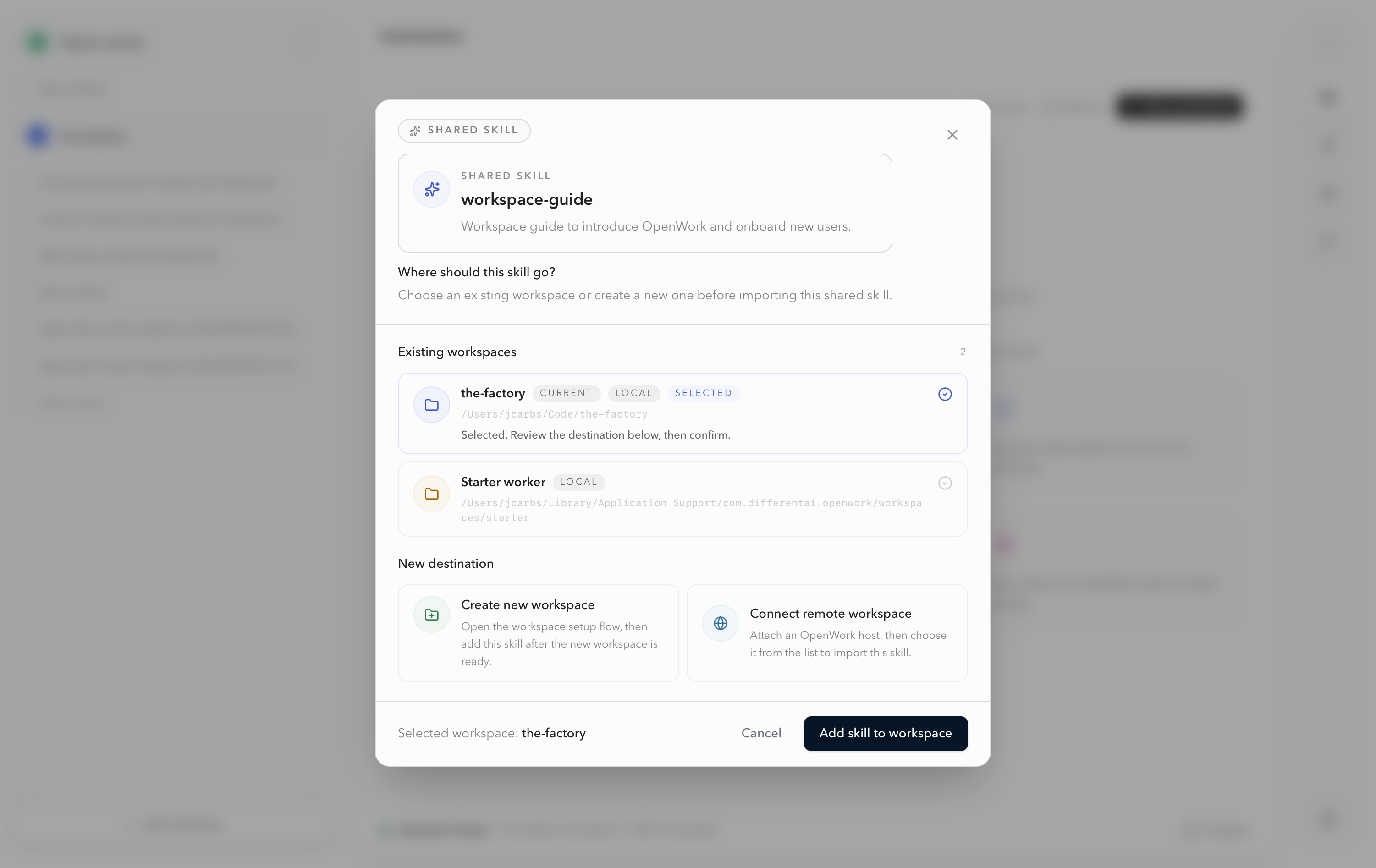
When you have an OpenWork share URL, clickOpen in OpenWork.
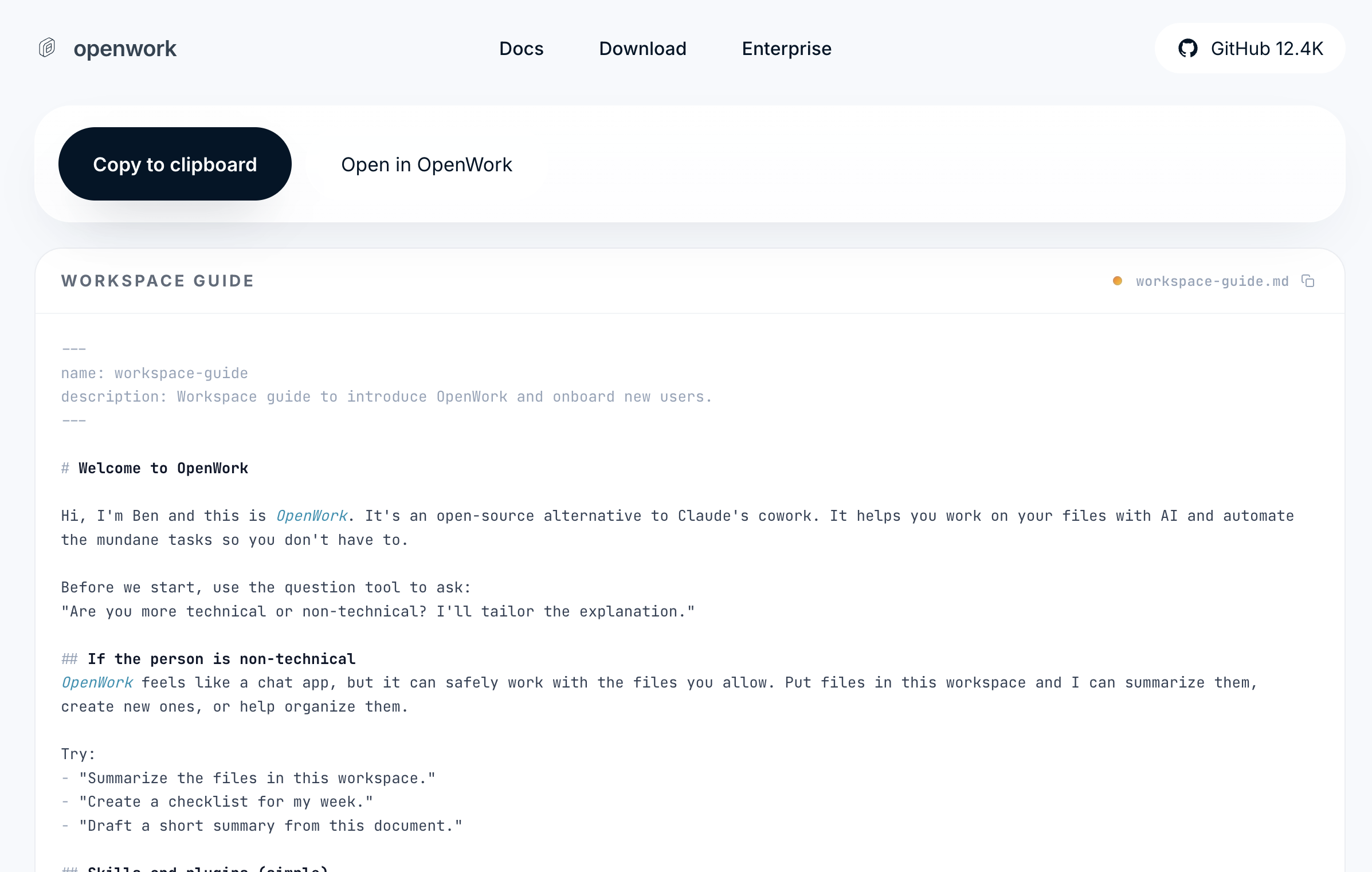
the-factory).
Pasting a skill into the share site, then importing it
Start at the OpenWork share page without any skill loaded. Paste or upload the skill there, then clickGenerate link:
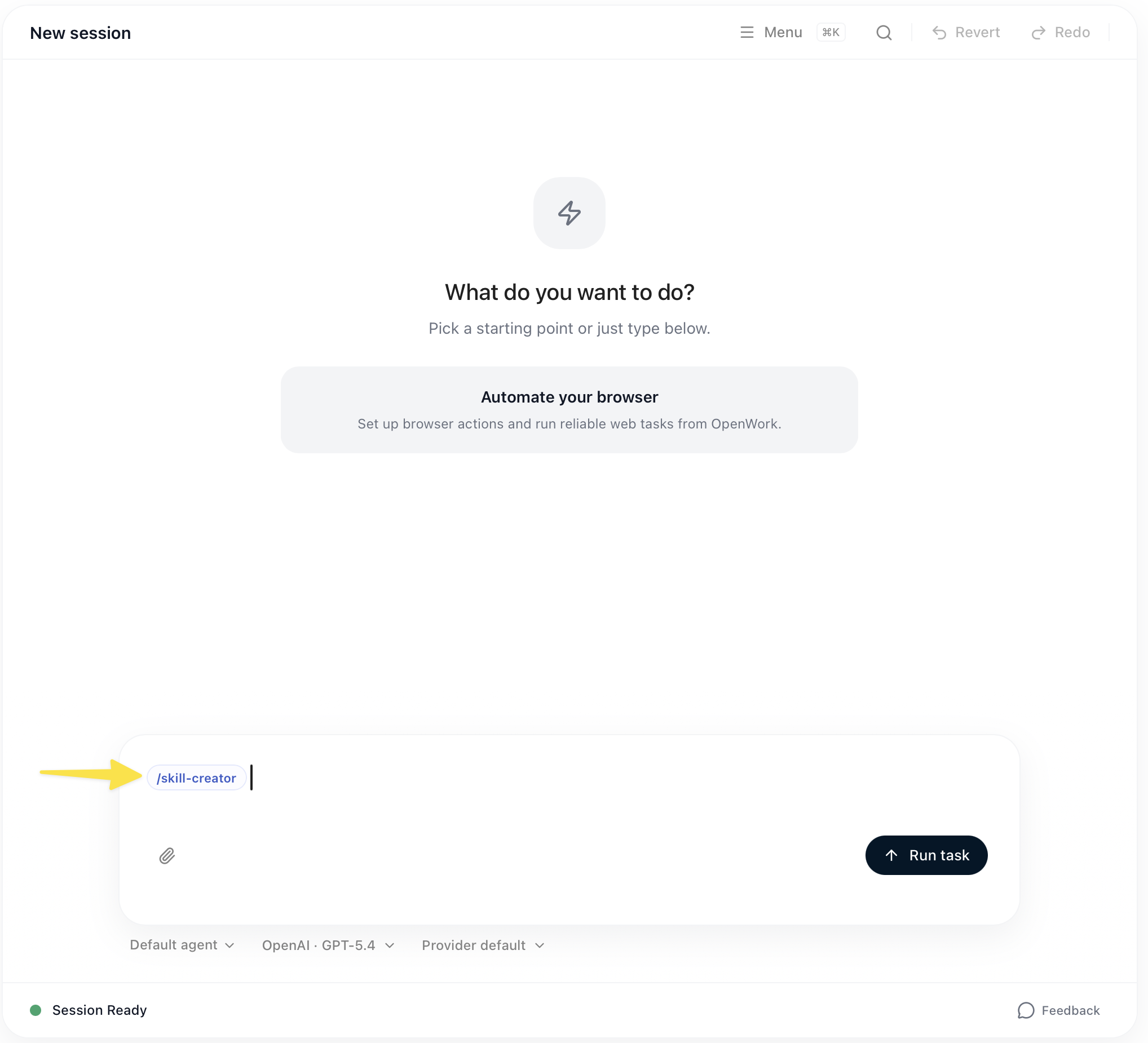
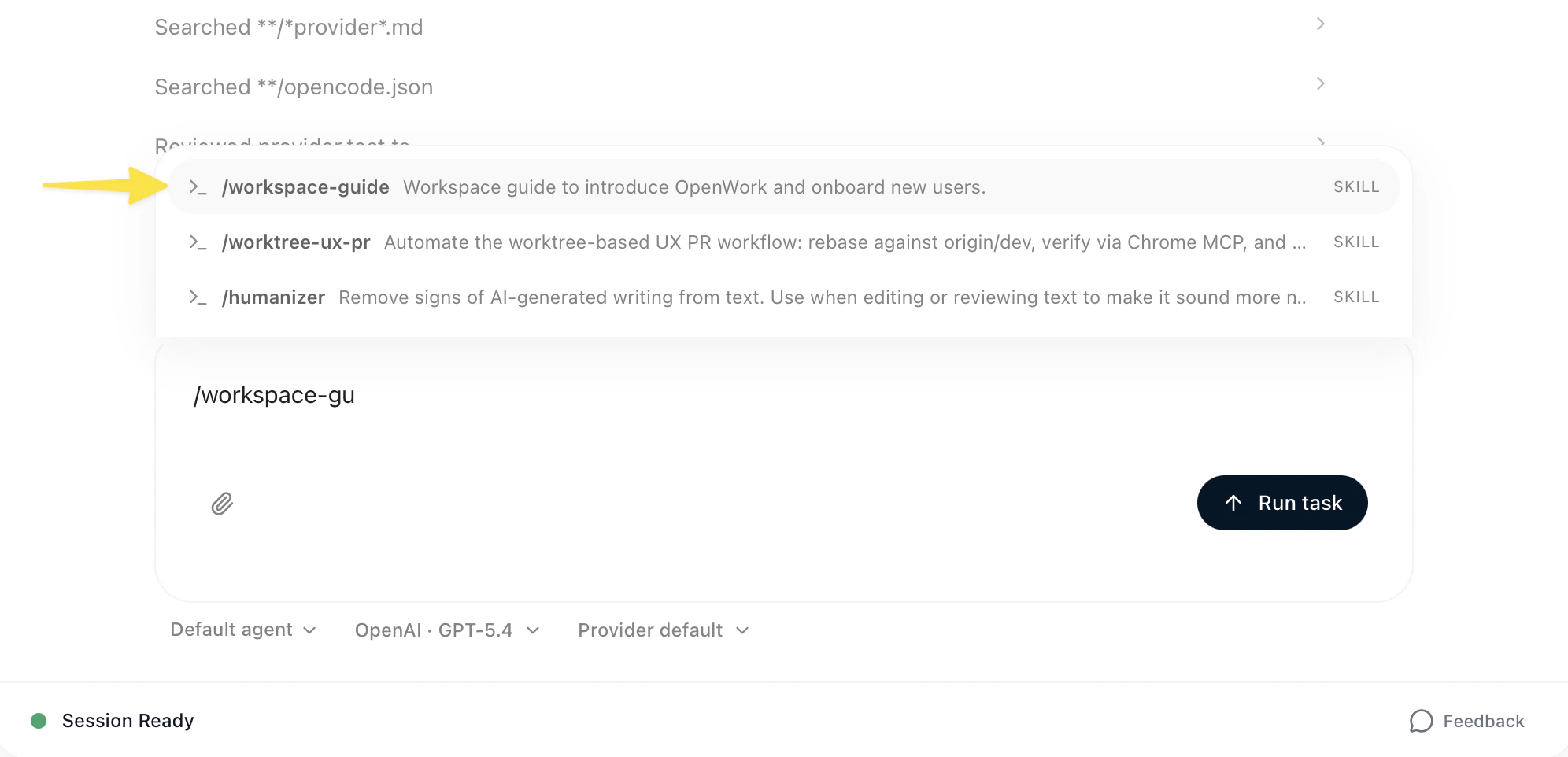
Creating a skill with /skill-creator in chat
Type /skill-creator in chat, then either paste the external skill you want to import or describe what you want the skill to do. OpenWork will generate a workspace-local skill from that input.