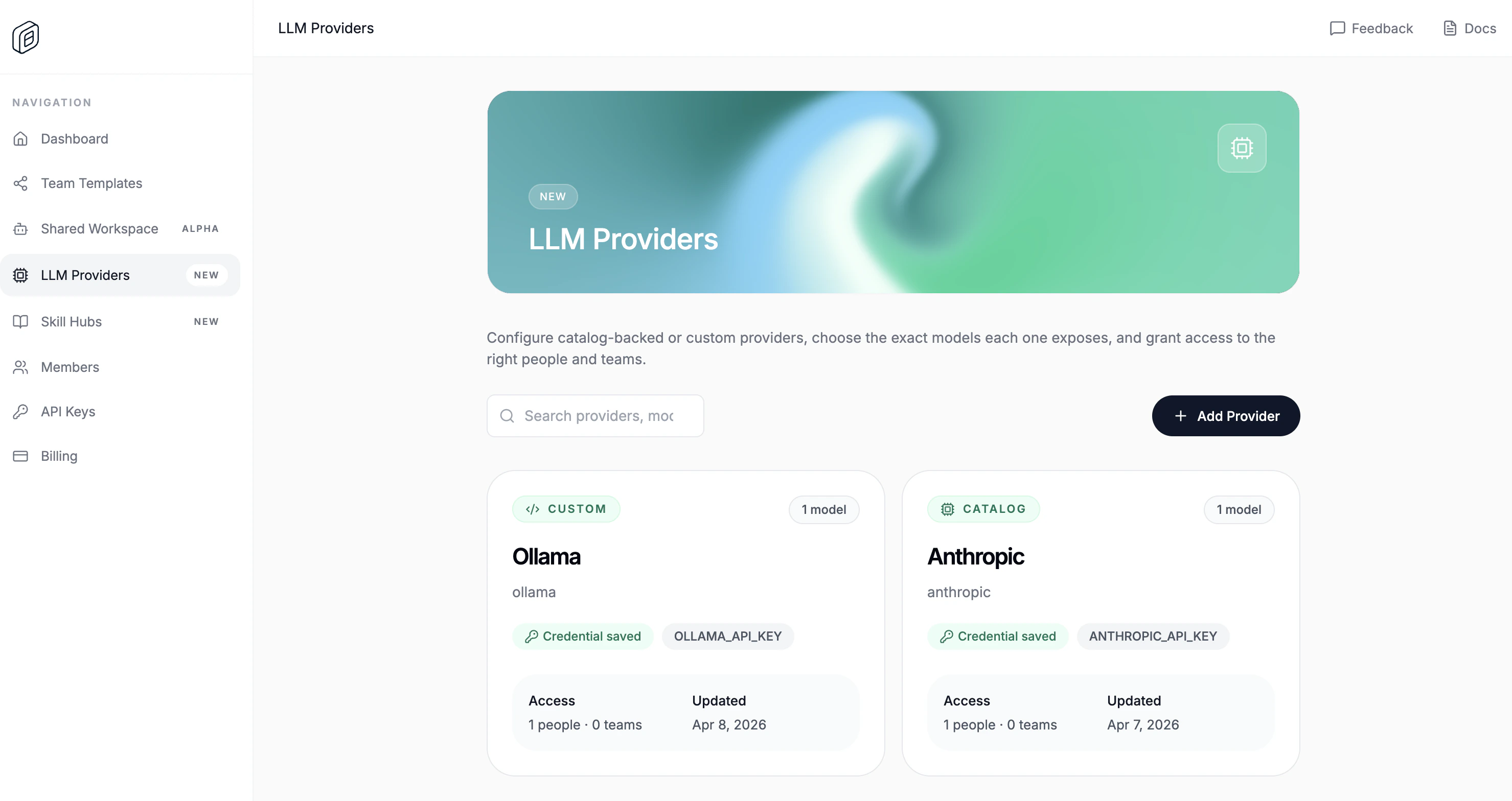
Use this when the provider is not in the catalog. The Cloud dashboard accepts a models.dev-style JSON definition, stores the shared credential once, and then lets desktop workspaces import it.
Custom LLM provider detail in OpenWork Cloud

Create the custom provider

  1. Open LLM Providers.
  2. Click Add Provider.
  3. Switch to Custom provider.
  4. Paste the Custom provider JSON.
  5. Paste the shared API key / credential.
  6. Choose People access and/or Team access.
  7. Click Create Provider.
The JSON must include id, name, npm, env, doc, and models. api is optional, but most OpenAI-compatible providers use it. The editor also requires valid JSON, at least one environment variable, and at least one model.
{
  "id": "custom-provider",
  "name": "Custom Provider",
  "npm": "@ai-sdk/openai-compatible",
  "env": [
    "CUSTOM_PROVIDER_API_KEY"
  ],
  "doc": "https://example.com/docs/models",
  "api": "https://api.example.com/v1",
  "models": [
    {
      "id": "custom-provider/example-model",
      "name": "Example Model",
      "attachment": false,
      "reasoning": false,
      "tool_call": true,
      "structured_output": true,
      "temperature": true,
      "release_date": "2026-01-01",
      "last_updated": "2026-01-01",
      "open_weights": false,
      "limit": {
        "context": 128000,
        "input": 128000,
        "output": 8192
      },
      "modalities": {
        "input": [
          "text"
        ],
        "output": [
          "text"
        ]
      }
    }
  ]
}

Import it into the desktop app

  1. Open Settings -> Cloud.
  2. Choose the correct Active org.
  3. Under Cloud providers, click Import.
  4. Reload the workspace when OpenWork asks.

Functional example: Ollama (Qwen3 8B)

This setup a local Ollama instance running qwen3:8b. Ollama’s OpenAI-compatible endpoint requires an API key but ignores the value, so paste anything (for example ollama) into the API key / credential field when creating the provider.
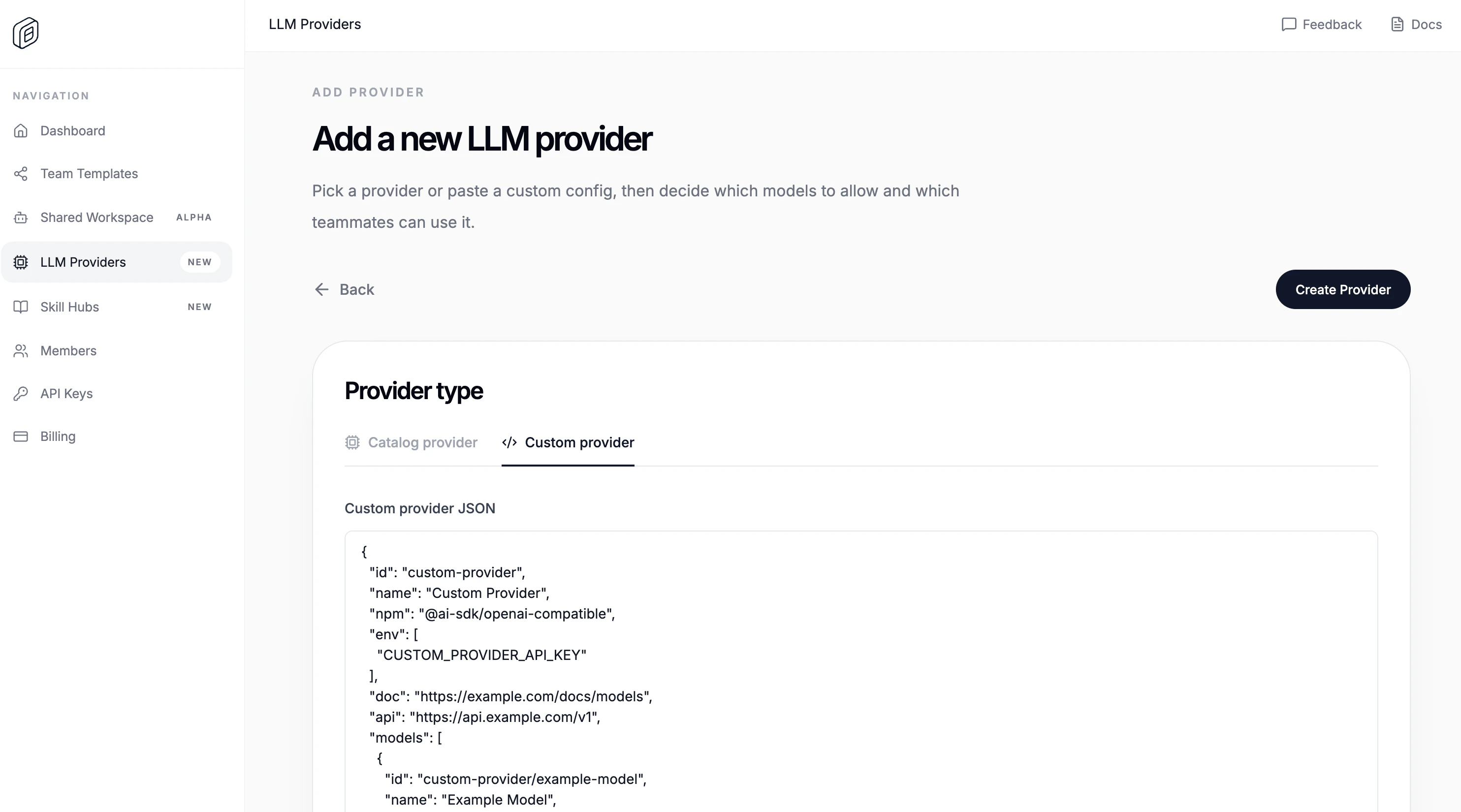
Config to add Ollama as a custom provider
{
  "id": "ollama",
  "name": "Ollama",
  "npm": "@ai-sdk/openai-compatible",
  "env": [
    "OLLAMA_API_KEY"
  ],
  "doc": "https://docs.ollama.com/api/openai-compatibility",
  "api": "http://localhost:11434/v1",
  "models": [
    {
      "id": "qwen3:8b",
      "name": "Qwen3 8B",
      "attachment": false,
      "reasoning": true,
      "tool_call": true,
      "structured_output": true,
      "temperature": true,
      "release_date": "2025-04-28",
      "last_updated": "2025-04-28",
      "open_weights": true,
      "limit": {
        "context": 32768,
        "input": 32768,
        "output": 8192
      },
      "modalities": {
        "input": [
          "text"
        ],
        "output": [
          "text"
        ]
      }
    }
  ]
}
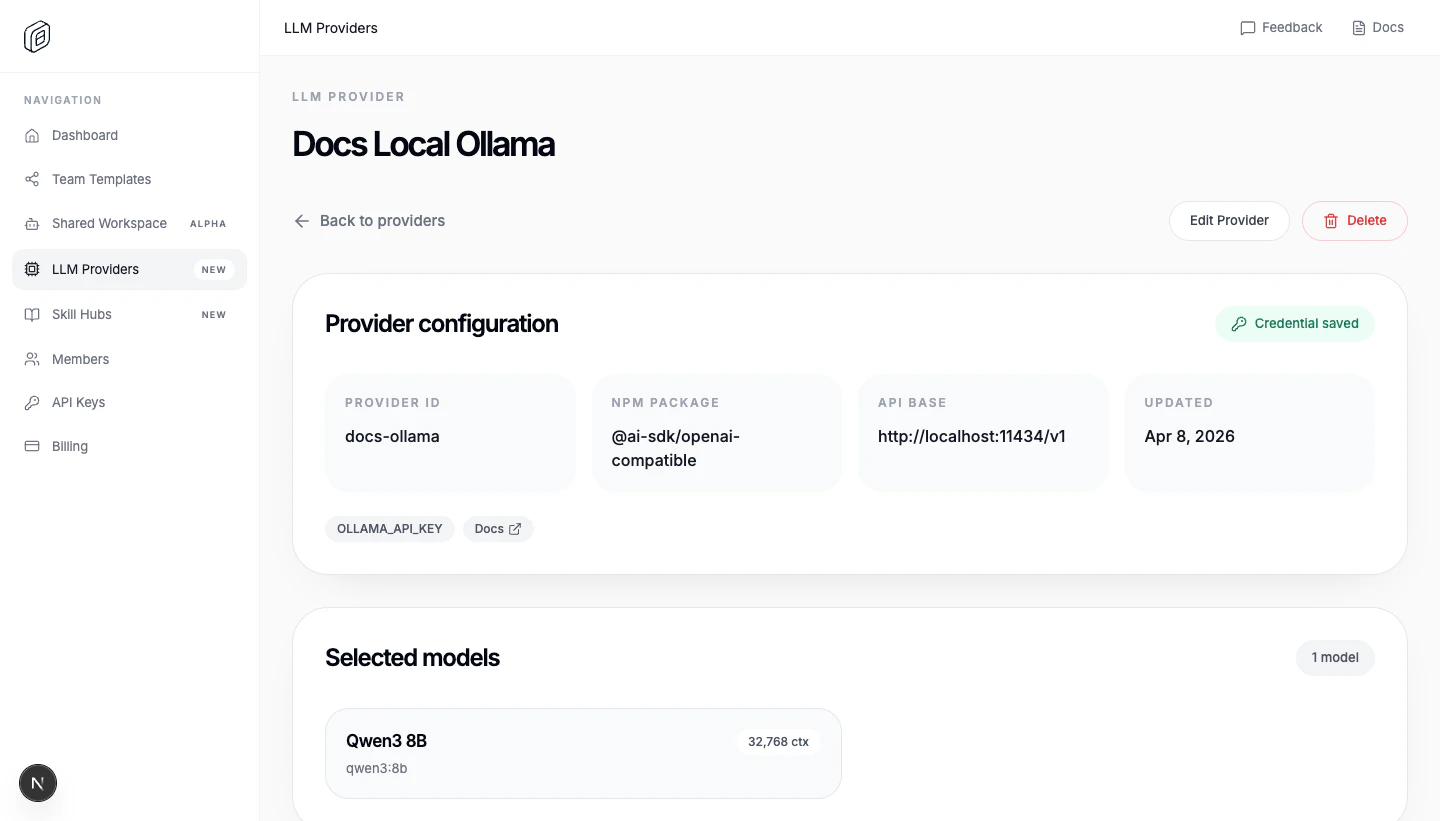
Ollama added as a provider
Pull the model first with ollama pull qwen3:8b, then make sure the Ollama server is reachable at http://localhost:11434 with ollama serve Import it in your desktop, change the provider name and voila! You have an fully local LLM running in your machine.

When to use a cloud provider

We recommend using Cloud-bsaed provider when the setup is meant to be shared across an org or team. Otherwise, doing it directly in desktop is easier.