

Skills -> Cloud and Settings -> Cloud -> Skills, but hubs are the better fit when you want one team-managed collection.
1. Create the organization
If you do not already have one, open app.openworklabs.com, clickCreate organization, enter the org name, and finish checkout if prompted.
2. Create the team
- Open
Members -> Teams. - Click
Create Team. - Enter
Team name. - Select the
Team membersthat should receive the hub. - Click
Create team.
Owner and Admin members can manage teams.
3. Create the skill or upload it from the desktop app
- Open
Skill Hubs -> All Skills. - Click
Add Skill. - Choose
Manual EntryorUpload SKILL.md. - Fill
Skill Name,Short Description, andDetailed Instructions (Markdown). - Choose the right
Visibility. - Click
Create Skill.
Workspace -> Skills, click Share skill, choose Team, and save it to your active organization before attaching it to a hub.
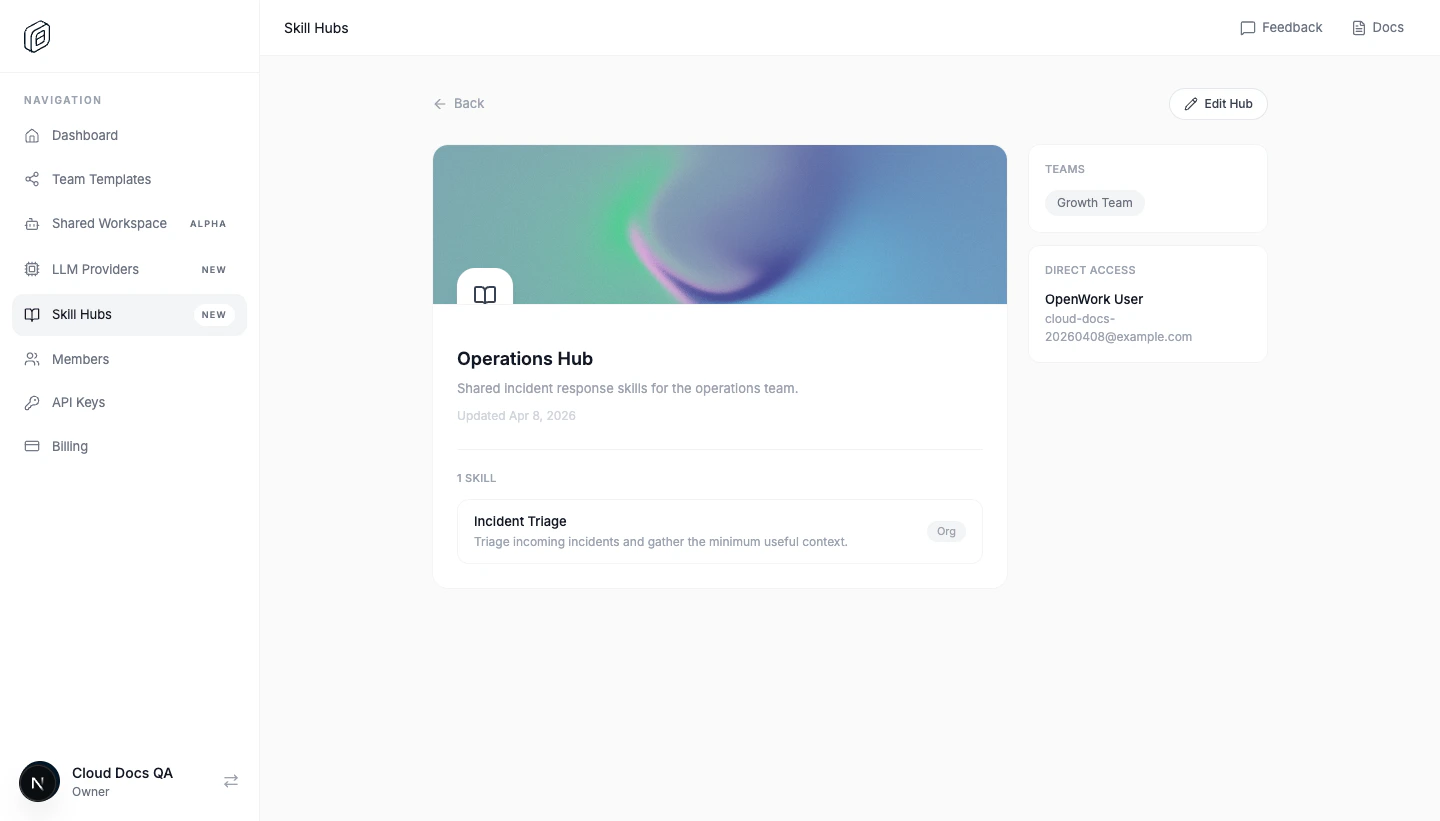
4. Create the hub and assign it to the team
- Open
Skill Hubs -> Hubs. - Click
Create Hub. - Set
Hub Nameand optionalDescription. - Under
Assigned Teams, select the teams that should access the hub. - Under
Hub Skills, select the skills to include. - Click
Create Hub.
5. Import the hub into the desktop app
- Open the desktop app and go to
Settings -> Cloud. - Choose the same
Active org. - Under
Skill hubs, clickImport allon the hub. - Reload the workspace when OpenWork asks.
.opencode/skills for that workspace.
If you need just one shared skill instead of the entire hub, open Skills -> Cloud or Settings -> Cloud -> Skills and install it there.
Keeping it up to date
- Use
SyncinSettings -> Cloud -> Skill hubsafter the hub changes. - Use
Settings -> Cloud -> SkillsorSkills -> Cloudto sync, uninstall, or review individual skills that came from the org. - Use
Removeto stop managing the hub from this workspace.